Add Segment Items
Objective
To add a segment items to a segment in your Company level Work Breakdown Structure (WBS).
Background
A segment is a discrete category that an organization uses to break down its work into manageable components. A segment item is one of many distinct items in a segment. After creating a segment, you can add an unlimited number of segment items to it.
Things to Consider
- Required User Permissions:
- 'Admin' level permissions on the Company level Admin tool.
- Additional Information:
- Segment items are placed into the active state upon creation. If you don't want your company's project users to have access to a specific segment item, you can Deactivate Segment Items.
- 'Code' and 'Description' are required fields.
- Limitations:
- In a flat segment, duplicate entries in the 'Code' field are NOT permitted.
- In a tiered segment, duplicate entries in the 'Code' field are NOT permitted when the segment items are children of the same parent segment.
- There are no character limits or other limitations on entries in the 'Description' field.
- There is no limit on the number of segment items you can add.
- Custom Segments are NOT supported with the ERP Integrations tool.
Prerequisites
Steps
- Navigate to the Company level Admin tool.
- Under 'Company Settings', click the Work Breakdown Structure link.
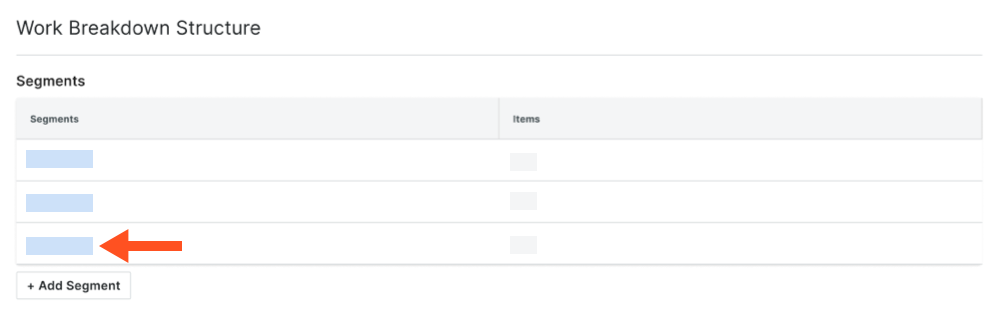
- In the 'Segments' table, click the segment that you want to work with.
Tips
- Where are my individual cost codes and cost types? The 'Cost Code' and 'Cost Type' segments in Work Breakdown Structure are Procore's default segments. The individual cost codes and cost types listed in each segment list are called segment items. See What are segment and segment items?
- What are sub jobs? The 'Sub Job' segment is an optional segment that you can enable. See Enable Sub Jobs for WBS. Once enabled, you can add sub jobs to your projects. See Add Sub Jobs to a Project.
- What are custom segments? Your company can also create custom segments. For example, you could create a 'Phase' segment and then add segment items named 'Phase I', 'Phase II', and 'Phase III.' See Add Custom Segments.
- What is the difference between a flat segment and a tiered segment? To learn the difference, see What is the difference between a flat and tiered segment in Procore's WBS?
- In the 'Segments' table, do the following:
- Click the Add Items button.
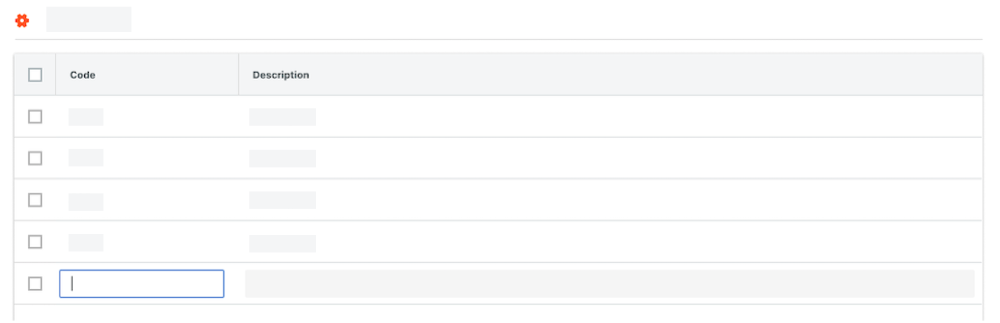
- Code. Enter a unique alphanumeric code for the segment item. Then press the TAB key to move system focus to the 'Description' field. For example, enter: P1, P2, or P3
Notes
- You can set character limits on the 'Code' field when adding or editing a segment. See Add a Company Level Custom Segment or Edit a Company Level Custom Segment.
- To save a new segment item, you must enter both a 'Code' and 'Description'. if you do not enter data in these fields, a RED banner appears to alert you that the fields cannot be empty.

- Description. Enter a description of the segment item. Then press the TAB key to save the new segment item to the list. A GREEN 'Success' banner appears to confirm that the new segment item was saved. For example, enter: Phase I, Phase II, or Phase III
Important
In order to navigate off the page, you must enter both a 'Code' and 'Description'. If you do NOT have an entry in both fields and try to move your cursor's focus to a new page, a popup message reminds you that any changes you've made will NOT be saved.
- To finish your data entry on the line item, click Cancel.
- To proceed without saving the line item, click Leave.
- Code. Enter a unique alphanumeric code for the segment item. Then press the TAB key to move system focus to the 'Description' field. For example, enter: P1, P2, or P3
- Click the Add Items button.
- Repeat the steps above for every segment item that you want to add.