会話ツールでメッセージを送信
目的
会話ツールを使用して、Procore の 1 人以上の個人にメッセージを送信します。
考慮すべきこと
- 必須ユーザー権限:
- プロジェクトのディレクトリに存在する必要があります。
メモ: メッセージを送信する個人は、プロジェクトのディレクトリにも存在している必要があります。
- プロジェクトのディレクトリに存在する必要があります。
注
- 会話で個人をタグ付けする場合は、キーボードで @ 記号を入力し、その名前を選択します。「 会話でユーザーにメンションする」を参照してください。
- テキスト ボックスに写真をドラッグすると、メッセージに写真を追加できます。「 会話ツールでメッセージに写真を添付するにはどうすればよいですか?」を参照してください。
- Procore アカウントで有効になっている場合、送信後5分以内にメッセージを編集または削除できます。「 会話ツールでメッセージを編集または削除する」を参照してください。
ステップス
会話ツールでさまざまな種類のメッセージを送信する方法については、以下のセクションを参照してください。
ダイレクトメッセージ
新しいダイレクト メッセージを送信する
- Navigate to the Conversations tool (click the conversations
 icon in the Procore header).
 - Click Start Direct Message at the top of the page, or click the create
 icon in the 'Direct Messages' section.
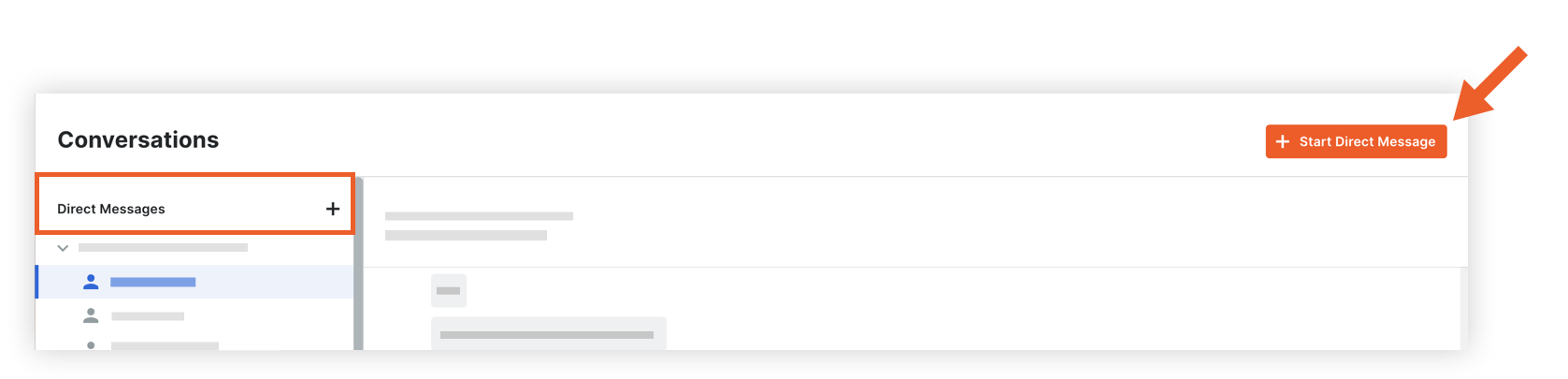
- Complete the following information:
- Project: Select the project from the drop-down menu. You can search for the project name or number if needed.
Note: After you select a project, the Team Members list is automatically populated with all users in the project's Directory. - Team Members: Select the people you want to include in the direct message. If your project has distribution groups, you can select one to automatically add everyone in that group. See Add a Distribution Group to the Project Directory.
- A maximum of 100 members can be added.
- Message: Enter your message.
- To mention an individual in the conversation, type the @ symbol on your keyboard and select their name. See Mention a User in a Conversation.
- If you want to add attachments or link items to your message, click the plus
 icon and select from the following options:
Note: See Add Items to a Message in the Conversations Tool and What items can be added to a message in the Conversations tool? for more information on how to add items.- Upload from Computer: Allows you to add files from your computer.
- Link Project Items: Allows you to add links to items in the project.
- Add Files from Procore: Allows you to add one or more files from the project's Drawings, Forms, and Documents tools.
- Project: Select the project from the drop-down menu. You can search for the project name or number if needed.
- When you are ready to send your message, press the ENTER or RETURN key on your keyboard, or click the send
 icon.
icon.
Note: If the 'Edit/Delete' feature for Conversations is enabled on the account, you can edit or delete your message within five (5) minutes of sending it. See Edit or Delete a Message in the Conversations Tool.
既存の会話でダイレクト メッセージを送信する
- Navigate to the Conversations tool (click the conversations icon in the Procore header).
- In the 'Direct Messages' section, click the name of the direct message you want to open.

- Enter a message in the text box.
- To mention an individual in the conversation, type the @ symbol on your keyboard and select their name. See Mention a User in a Conversation.
- If you want to add attachments or link items to your message, click the plusicon and select from the following options:
Note: See Add Items to a Message in the Conversations Tool and What items can be added to a message in the Conversations tool? for more information on how to add items.- Upload from Computer: Allows you to add files from your computer.
- Link Project Items: Allows you to add links to items in the project.
- Add Files from Procore: Allows you to add one or more files from the project's Drawings, Forms, and Documents tools.
- When you are ready to send your message, press the ENTER or RETURN key on your keyboard, or click the send icon.
Note: If the 'Edit/Delete' feature for Conversations is enabled on the account, you can edit or delete your message within five (5) minutes of sending it. See Edit or Delete a Message in the Conversations Tool.
グループ
グループメッセージの送信
- Navigate to the Conversations tool (click the conversations icon in the top menu of Procore).
- In the Groups section, click the group you want to send a message to.

- Enter a message in the text box.
- To mention an individual in the conversation, type the @ symbol on your keyboard and select their name. See Mention a User in a Conversation.
- If you want to add attachments or link items to your message, click the plusicon and select from the following options:
Note: See Add Items to a Message in the Conversations Tool and What items can be added to a message in the Conversations tool? for more information on how to add items.- Upload from Computer: Allows you to add files from your computer.
- Link Project Items: Allows you to add links to items in the project.
- Add Files from Procore: Allows you to add one or more files from the project's Drawings, Forms, and Documents tools.
- When you are ready to send your message, press the ENTER or RETURN key on your keyboard, or click the send icon.
Note: If the 'Edit/Delete' feature for Conversations is enabled on the account, you can edit or delete your message within five (5) minutes of sending it. See Edit or Delete a Message in the Conversations Tool.
案件
Procore プロジェクトの案件からメッセージを送信する
- Navigate to the item in a Procore project that you want to send a message about. See Which tools and items support Procore Conversations?
- Click the Conversations
 icon to open the side panel.

- Enter a message in the text box.
- To mention an individual in the conversation, type the @ symbol on your keyboard and select their name. See Mention a User in a Conversation.
- If you want to add attachments or link items to your message, click the plus icon and select from the following options:
Note: See Add Items to a Message in the Conversations Tool and What items can be added to a message in the Conversations tool? for more information on how to add items.- Upload from Computer: Allows you to add files from your computer.
- Link Project Items: Allows you to add links to items in the project.
- Add Files from Procore: Allows you to add one or more files from the project's Drawings, Forms, and Documents tools.
- To send the message, click the send icon or press ENTER on your keyboard.
The message is automatically shown in the side panel of the item, and can also be seen within the Conversations tool.
Note: If the 'Edit/Delete' feature for Conversations is enabled on the account, you can edit or delete your message within five (5) minutes of sending it. See Edit or Delete a Message in the Conversations Tool.
既存の案件の会話でメッセージを送信する
- Navigate to the Conversations tool (click the conversations icon in the top menu of Procore).
- In the 'Items' section, click the item conversation that you want to send a message in.

Note: Click the expand icon to show items for a tool as necessary.
 - Enter a message in the text box.
- To mention an individual in the conversation, type the @ symbol on your keyboard and select their name. See Mention a User in a Conversation.
- To go to the item in the project, click the open
 icon. See Go to an Item in Procore from the Conversations Tool.
 - If you want to add attachments or link items to your message, click the plus icon and select from the following options:
Note: See Add Items to a Message in the Conversations Tool and What items can be added to a message in the Conversations tool? for more information on how to add items.- Upload from Computer: Allows you to add files from your computer.
- Link Project Items: Allows you to add links to items in the project.
- Add Files from Procore: Allows you to add one or more files from the project's Drawings, Forms, and Documents tools.
- When you are ready to send the message, click the send icon or press ENTER on your keyboard.
The message is automatically shown in the side panel of the item, and can also be seen within the Conversations tool.
Note: If the 'Edit/Delete' feature for Conversations is enabled on the account, you can edit or delete your message within five (5) minutes of sending it. See Edit or Delete a Message in the Conversations Tool.