プロジェクトレベルの文書ツールでファイルの新バージョンをアップロードする
目的
ファイルの新バージョンをプロジェクトレベルの文書ツールにアップロードすること。
考慮すべきこと
- 必要なユーザー権限:
- プロジェクトレベルの文書ツールに対する「標準」または「管理者」権限。
- 追加情報:
- 文書ツールのフォルダにファイルをアップロードすると、Procore は自動的にフォルダ内の既存ファイルをチェックします。同じ名前のファイルが見つかった場合は、既存のファイルの新バージョンとしてアップロードできます。以下の「 新しいファイル バージョンを一括アップロードする」を参照してください。
- 複数のユーザーが、ファイル編集にアクセスできる環境で作業している場合、競合 (別のユーザーの変更を上書きするなど) を防ぐために、常にファイルをチェックインおよびチェックアウトすることを強くお勧めします。「プロジェクトレベルの文書ツールでファイルのチェックインまたはチェックアウト」を参照してください。
動画
ステップ
Upload a New Version of a File
- Navigate to the Documents tool.
- Locate the file you want to upload a new version of.
- Hover over or right-click on the file.
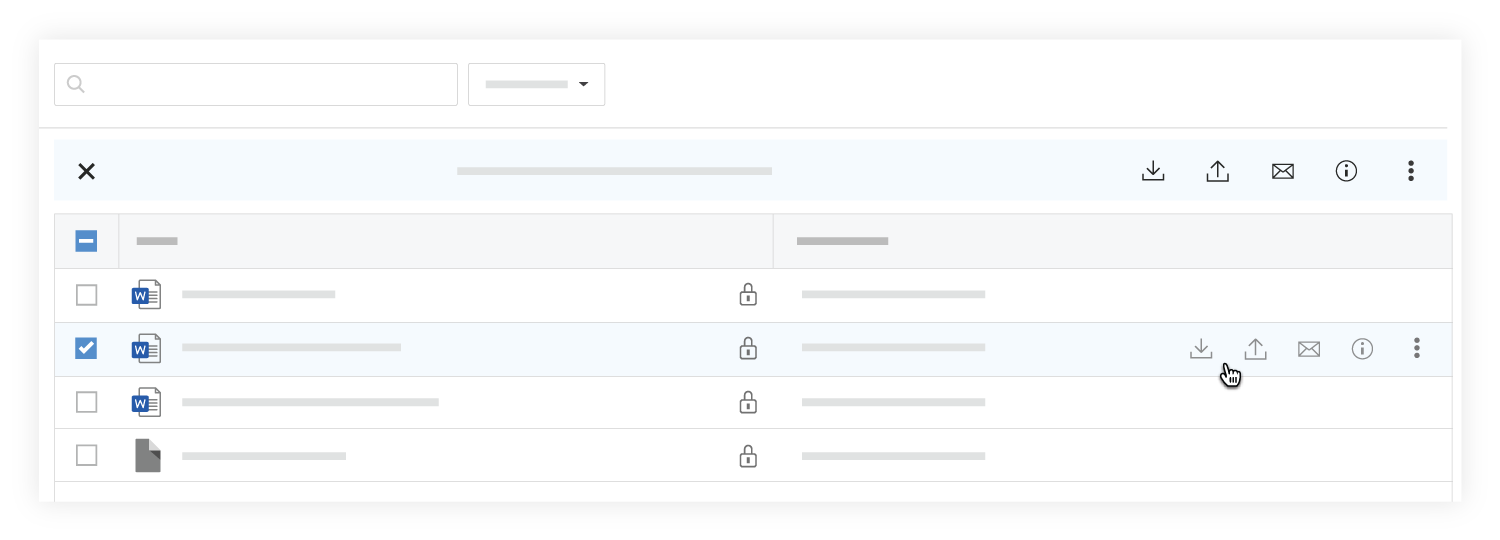
- Click New Version
 .
. - Drag and drop the file to the box under New Version.
OR- Click the box under New Version to browse for the file.
- Select the file and click Open.
- Optional: Add comments about the new version of the file.
- Click Upload.
Bulk Upload New File Versions
- Navigate to the Documents tool.
- Open the folder you want to upload files to.
- After selecting files on your computer, drag and drop them to the center panel of the Documents tool.
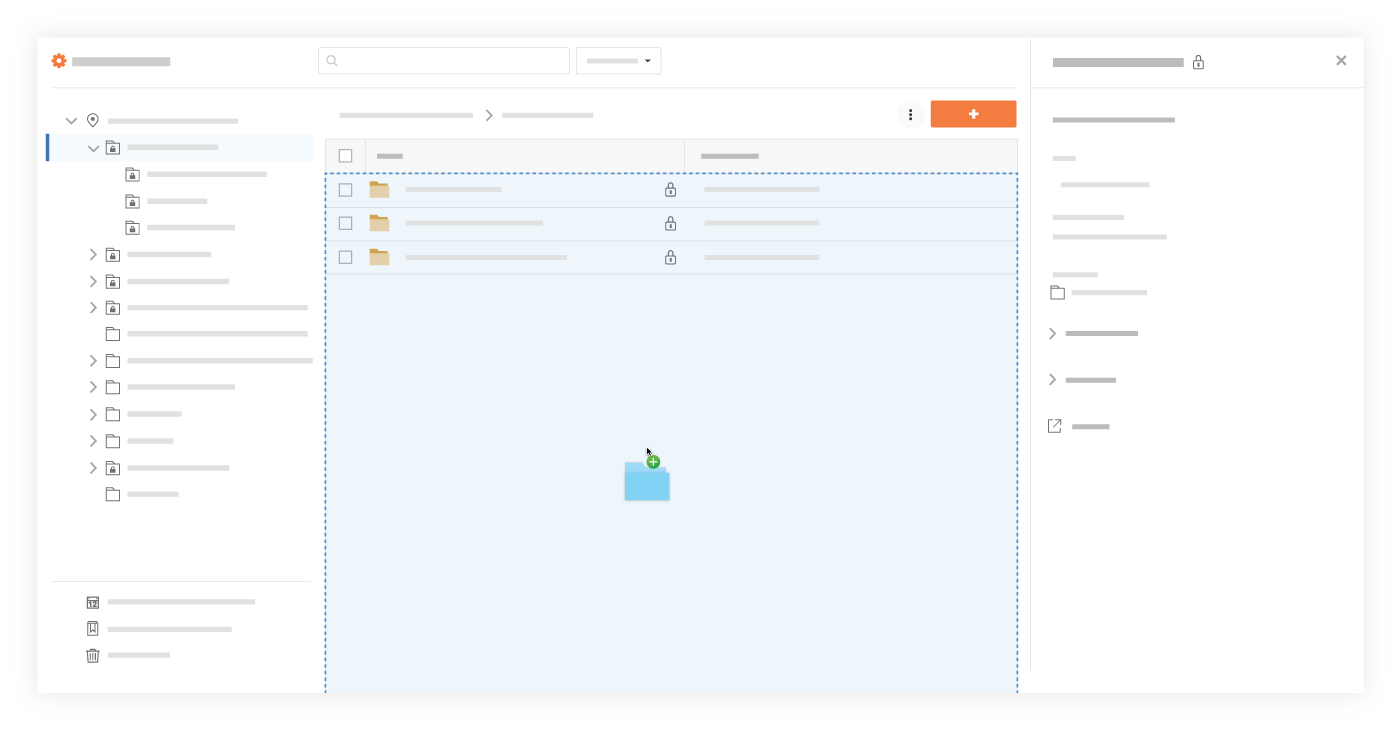
OR
- Click the + New drop-down menu and select File Upload.
- Select the files you want to upload from your computer.
- Click Open.
- A window opens with a message that files with the same name already exists in the folder.

- Ensure any files you want to upload new versions of have Upload as new version selected.
- Click Continue Upload.
Note: The files automatically begin uploading as new versions.