予算に見積りを送信する
目的
Procore プロジェクトの見積から予算に項目を送信すること。
バックグラウンド
見積ツールで見積を完了した後、「予算に送信する」オプションを使用して、その見積からプロジェクトの予算に項目をコピーしてインポートできます。見積の費用コードと金額は予算に反映されます。
考慮すべきこと
- 必要なユーザー権限
- 会社は、Procore のプロジェクト会計ツールのライセンスを取得している必要があります。
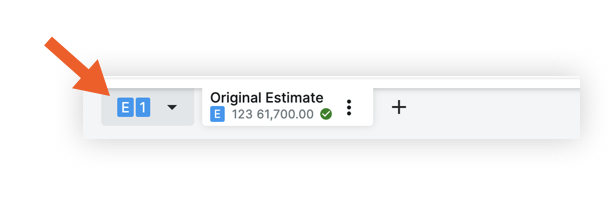
- 予算に見積を送信するには、チェックマーク
 アイコンで示されているように、見積を一次見積として設定する必要があります。
 - 利益、間接費、割引、税金、その他などの明細行の下の既定の調整は、会社の管理者ツールで設定されます。
- 見積に労働、材料、税金が適用された部分がある場合、その項目は予算内で3つの別々の項目 (労働、材料、税金に1つずつ) として表示されます。
注
現在、予算に送信する は、一次見積のデータのみを送信し、見積は含まれていません。ステップス
注
Procore プロジェクトで選択できるセグメントと項目は、プロジェクトの特定の作業分解構成図に固有です。環境の予算コードの作成についてサポートが必要な場合は、会社の Procore 管理者に連絡してください。- プロジェクトの 見積ツールに移動します 。
- [ 見積 ] タブをクリックします。
- 見積を選択します。
- 「アクション」 メニューをクリックし、「予算に送信」を選択します。
- 必要に応じて、行より下の調整を更新します。
- 費用を送信する: 費用のみを送信するか、追加の調整を含む見積全体を送信するかを選択します。
- 利益、間接費、割引、税金、その他: 見積項目に分散するか、特定の予算コードに集計するかを選択します。「見積内の予算コードによって、予算の項目を作成するにはどうすればよいですか?」を参照してください。
- 特定の予算コードに集計する場合は、[選択] または 現在の選択をクリックして、それぞれの費用コードと費用タイプを構成します。次に、「変更を保存」をクリックします。
- オプション: 管理 を選択して、作業分解構成図セグメントと予算コード構成を変更します。

- [ 予算に納める] をクリックします。