作業分解構成図: 会社管理ガイド
目次
- 概要
- カスタム セグメントの管理
- セグメント項目の管理
- 既定の費用コードを管理する
- 既定の費用タイプの管理
- プロジェクトのサブプロジェクトを有効にする
- 会社の予算コード構成の設定
- プロジェクトレベルの予算コード構成の編集を有効にする
概要
初めて作業分解構成図 (WBS) を設定するときは、Procore に付属する既定の予算コードと構成を使用するか、この構造をカスタマイズして独自の会社レベルの作業分解構成図を作成するかを選択できます。
このガイドでは、会社の Procore 管理者 に、会社の Procore アカウントのプロジェクトで使用する作業分解構成図を設定および定義する方法を示します。
ヒント
プロジェクトレベルの WBS 構成のガイドもあります。「作業分解構成図: プロジェクト管理ガイド」を参照してください。ステップス


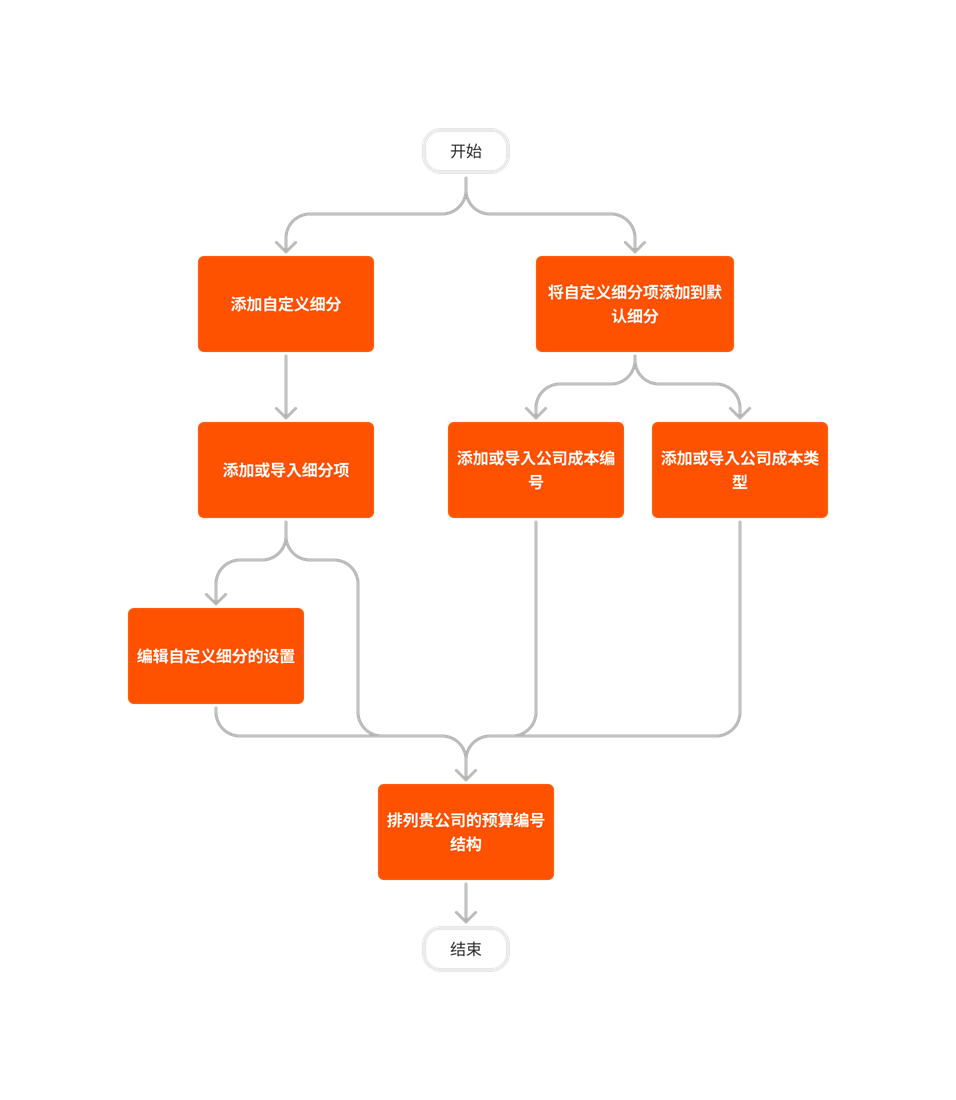
カスタム セグメントを追加する
Objective
To add a new custom segment to your Company level Work Breakdown Structure (WBS).
Background
A segment is a discrete category that an organization uses to break down its work into manageable components. A segment item is one of many distinct items in a segment. In Procore's Financial Management tools, segments are the building blocks that define the pattern of your company's budget code structure.
Examples
The example below shows you Procore's default budget code structure, which is available in the Company Admin tool. This budget code structure consists of Procore's two (2) default segments: Cost Code and Cost Type. These segments are required.
You also have the option to customize your budget code structure with up to ten (10) custom segments. The illustration below shows you how your budget code structure can be customized using a combination of both Procore's default segments and your own custom segments.
When getting started with Procore's WBS, segments must be added in the Company level Admin tool by your company's Procore Administrator. They are later used to define your company's budget code structure. Your company's budget code structure can be applied as-is to individual Procore projects or you can define a unique budget code structure at the project level, using a subset of what has been made available on projects via the company level.
When adding new segments to Procore, your company's Procore Administrator can configure each segment as flat or tiered. To learn more, see What are segments?
Tip
Not sure what custom segments to create? To learn how other Procore clients use Work Breakdown Structure, see What custom segments should we create for our company's Work Breakdown Structure?Things to Consider
- Required User Permissions:
- 'Admin' level permissions on the Company level Admin tool.
- Additional Information:
- Default Segments:
- There are two (2) required segments: Cost Code and Cost Type. These are Procore's two (2) default segments. You cannot delete these segments at the company or project level.
- There is also an optional third default segment named Sub Job. This segment can be enabled for use at the project level. See Enable Sub Jobs for WBS.
- When enabled at the project level, the 'Sub Job' segment is added to the 'Segments' and 'Budget Code Structure' sections of the 'Work Breakdown Structure' page in the Company Admin tool.
- When enabled on one (1) or more projects, the 'Sub Job' segment counts as one (1) of the thirteen (13) available segments in your company's Procore account.
- You cannot add or edit the default 'Sub Job' segment at the company. Instead, you must add them to a project. See Add Sub Jobs to a Project.
- Custom Segments:
- Duplicate 'Segment' names are NOT permitted.
- Your company's Procore Administrator can add up to ten (10) custom segments in your company's WBS.
- Custom segments are automatically available on all Procore projects.
- After creating a segment, you cannot convert its segment structure. For example, if you create a flat segment, you cannot convert it to a tiered segment later. You also cannot convert a tiered segment to a flat segment. To learn more, see Edit Custom Segment Settings.
- You can delete a custom segment at the Company level as long as it has not been added to the budget code structure on one (1) or more projects in your company's Procore account. See Delete Custom Segments.
- Default Segments:
- Limitations:
- Custom Segments are NOT supported with the ERP Integrations tool.
Steps
- Navigate to the Company level Admin tool.
- Under 'Company Settings', click the Work Breakdown Structure link.
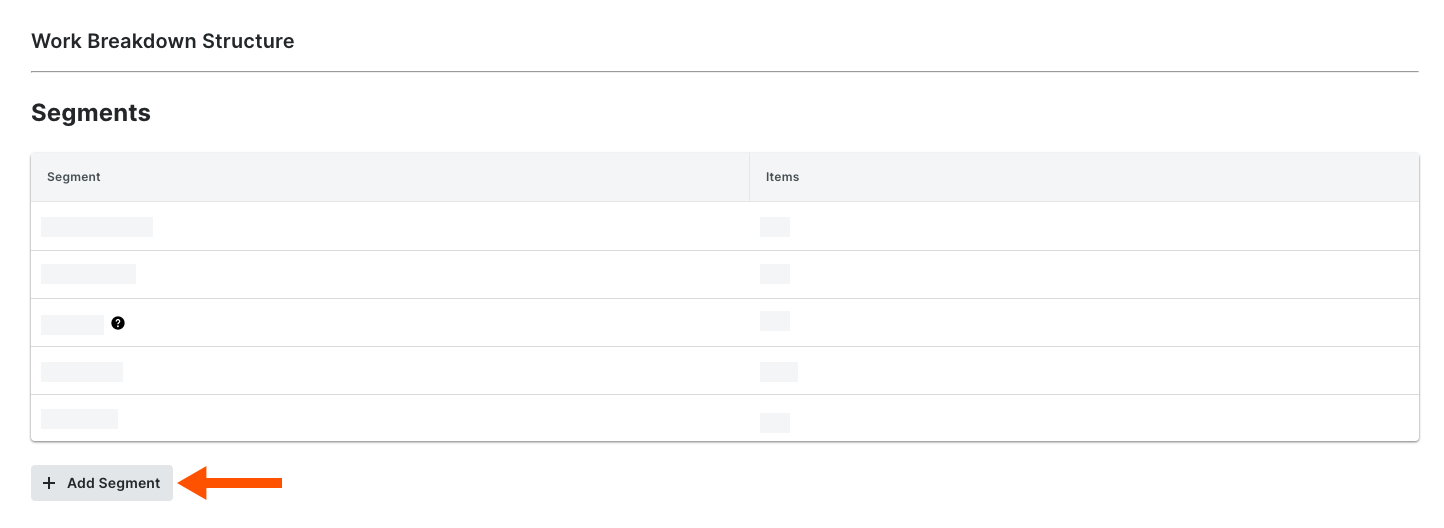
- In the 'Segments' table, click the Add Segment button.

- In the 'New Segment' window, do the following:
Note
An asterisk (*) in the list below indicates a required field.
- Segment Name*. Enter a name for your new segment. This is a required field. Duplicate segment names are NOT permitted. A 'Segment Name is in use' message appears to notify if you attempt to enter a name that already exists.
Tip
Not sure what custom segments to create? To learn how other Procore clients use Work Breakdown Structure, see What custom segments should we create for our company's Work Breakdown Structure? - Segment Structure*. Select a value from the drop-down list. This is a required field. Your choices include:
- Flat. Select this option to add your segment to the list with no hierarchy.
- Tiered. Select this option to nest your segment into a tree (hierarchical) structure.
Tip
What's the difference between a flat and tiered segment? To learn the difference, see What is the difference between a flat and tiered segment in Procore's WBS?
- Segment Name*. Enter a name for your new segment. This is a required field. Duplicate segment names are NOT permitted. A 'Segment Name is in use' message appears to notify if you attempt to enter a name that already exists.
- Under the Project Level Actions section, choose one (1) or all of these options:
Note
When the 'Project Level Actions' settings are turned ON, your project administrators (users with 'Admin' level permissions on the Project level Admin tool) are permitted to perform specific tasks on segments and segment items at the project level. These settings are turned OFF by default.- Add/Edit/Delete Project Level Segment Items. Place a mark in this checkbox to provide project administrators with the ability to add, edit, and delete unused segment items on a project. This setting is turned OFF by default.
Note
When this setting is turned ON, project administrators can perform these tasks:
- Delete Segment Items Inherited from Company. Place a mark in this checkbox to provide project administrators with the ability to delete segment items inherited at the Project level from the Company level Admin tool. This is useful to project administrators who don't want new segment items created at the company level to be used on a project. See Delete Unused Segment Items from a Project.
- Add/Edit/Delete Project Level Segment Items. Place a mark in this checkbox to provide project administrators with the ability to add, edit, and delete unused segment items on a project. This setting is turned OFF by default.
- Click Create.
Procore adds the new segment to the bottom of the 'Segments' list. - Repeat the steps above for all of the new segments to add.
Tips
- Need to edit your new segment's settings? The best time to edit a new segment is before you start using it on a project. Once a custom segment is used to create a project budget code, you can edit it at any time. For details, see Edit Custom Segment Settings.
- Want to delete a custom segment? Its important to note that a custom segment cannot be deleted after it has been added to the budget code structure on one (1) or more projects in your company's Procore account. To learn more, see Delete Custom Segments.
- Want to add segment items? If your new segment is created, you can add new items now. For instructions, see Add Custom Segment Items.
- Ready to define your company's default budget code structure? You can arrange your segments in any order you want. This arrangement defines your company's budget code structure. For instructions, see Arrange Segments to Form the Company's Budget Code Structure.
Next Step
カスタム セグメント設定を編集する
Objective
To edit an existing custom segment that is not in use as a budget code for your company's Work Breakdown Structure (WBS).
Background
After you add a custom segment, you can edit its 'Segment Name' and its 'Project Level Actions' settings at any time. However, you are NOT permitted to modify its 'Segment Structure' setting. For example, you can change a segment named 'Phase' to 'Stage' and you can turn ON/OFF the Project level settings, but you cannot change a tiered segment to a flat segment (or vice versa).
Things to Consider
- Required User Permissions:
- 'Admin' level permissions on the Company level Admin tool.
- Additional Information:
- You cannot edit the 'Segment Structure' after a segment is created. For example, you cannot change a tiered segment to a flat segment or vice versa.
- You can edit these settings for a custom segment: 'Segment Name' and the checkboxes under 'Project Level Actions'.
- You cannot edit the settings for a default segment at any time.
- Limitations:
- Custom Segments are NOT supported with the ERP Integrations tool.
Prerequisites
Steps
- Navigate to the company's Admin tool.
- Under 'Company Settings', click the Work Breakdown Structure link.
- In the 'Segments' table, click the 'Segment' that you want to work with.
- Click the Configure Settings
 icon.
icon. - Edit the segment settings as follows:
Notes
- You can only edit segment settings for custom segments. You cannot edit settings for a default segment. See What is the difference between a default and custom segment in Procore's WBS?
- When editing a custom segment:
- You can only update the 'Segment Name' and its settings under 'Project Level Actions'.
- You are NOT permitted to edit its 'Segment Structure'.
- Optional: Segment Name. Type over the existing name with a new one. This is a required field.
- Optional: Under the Project Level Actions section, modify one or all of these options:
- Add/Edit/Delete Project Level Segment Items. Add or remove the mark from the checkbox. Adding a mark permits a project administrator to add, edit, and delete segment items at the project level. See Add Segment Items to a Project, Edit Segment Items on a Project, and Delete Unused Segment Items from a Project. Removing the checkmark restricts project administrators from adding, editing, and deleting segment items at the project level.
- Delete Segment Items Inherited from Company. Add or remove the mark from the checkbox. Adding a mark permits a project administrator to delete segment items inherited from the company level segment. See Delete Unused Segment Items from a Project. Removing the checkmark requires company level segment items to remain on a project.

- Click Save.
The 'Segments' list is updated with your changes. - Repeat the steps above for all of your company's segments with settings to edit.
You can continue by configuring the budget code structure for your company's Procore account.
See Also
カスタム セグメントを削除する
Objective
To delete a custom segment from your Company level Work Breakdown Structure (WBS).
Things to Consider
- Required User Permissions:
- 'Admin' level permissions on the Company level Admin tool.
- Additional Information:
- A custom segment cannot be deleted after it has been added to the budget code structure on one (1) or more projects in your company's Procore account.
- Procore's default segments cannot be deleted.
- For companies using the
 ERP Integrations tool: Show/Hide
- Custom Segments are NOT supported with the ERP Integrations tool.
Prerequisites
Steps
- Navigate to the Company level Admin tool.
- Under 'Company Settings', click the Work Breakdown Structure link.
- In the 'Segments' table, locate the segment to delete.
Notes
- Procore's default segments cannot be deleted.
- A custom segment cannot be deleted after it is has been added to the budget code structure for one (1) or more projects.
- If you add segment items to a segment, the total number of items displays in the 'Items' column on the 'Segments' table.
- Click the vertical ellipsis
 and choose Delete from the Overflow menu.
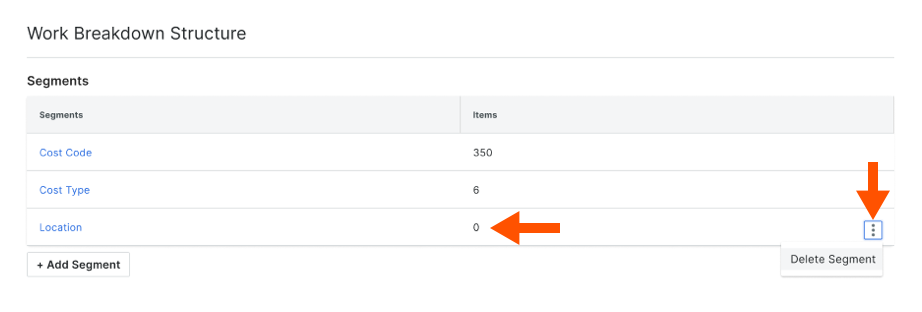
- In the 'Delete Segment?' popup window, click the Delete button to confirm the removal action. This permanently deletes the segment from Procore. The segment cannot be recovered.
See Also
セグメントを CSV にエクスポート
Objective
To export a segment and its segments items to the Comma Separated Values (CSV) file format.
Background
You can export a segment and all of its segment items at any time.
Things to Consider
- Required User Permissions:
- To export segments to CSV from the Company level Admin tool:
- 'Admin' level permissions on the Company level Admin tool.
- To export segments to CSV from the Project level Admin tool:
- 'Admin' level permissions on the Project level Admin tool.
OR - 'Read-Only' or 'Standard' level permissions on the Project level Admin tool with the 'Update Cost Codes' granular permission enabled on your permissions template.
- 'Admin' level permissions on the Project level Admin tool.
- To export segments to CSV from the Company level Admin tool:
- Limitations:
- Custom Segments are NOT supported with the ERP Integrations tool.
Prerequisites
Steps
- Navigate to the Company or Project level Admin tool.
- In the 'Segments' table, click the segment to work with.
- At the top of the page, click the Export as CSV link.

Procore exports the parent segment and all of its children.
Example
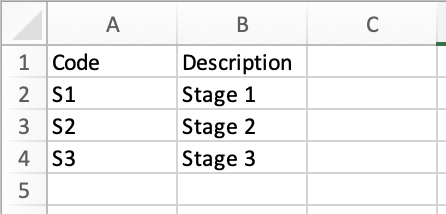
This example shows you a CSV export file of a flat segment, when opened in Microsoft Excel.
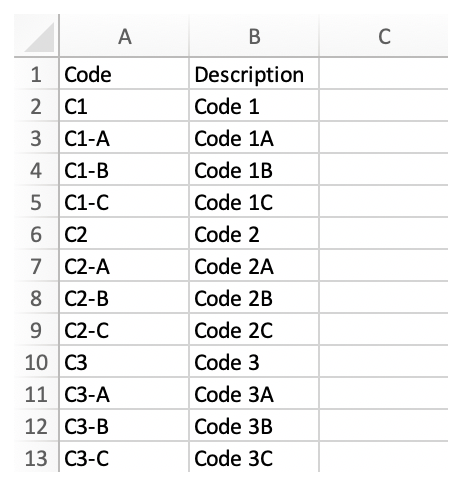
This example shows you a CSV export file a tiered segment, when opened in Microsoft Excel.
セグメント項目を追加する
Objective
To add a segment items to a segment in your Company level Work Breakdown Structure (WBS).
Background
A segment is a discrete category that an organization uses to break down its work into manageable components. A segment item is one of many distinct items in a segment. After creating a segment, you can add an unlimited number of segment items to it.
Things to Consider
- Required User Permissions:
- 'Admin' level permissions on the Company level Admin tool.
- Additional Information:
- Segment items are placed into the active state upon creation. If you don't want your company's project users to have access to a specific segment item, you can Deactivate Segment Items.
- 'Code' and 'Description' are required fields.
- Limitations:
- In a flat segment, duplicate entries in the 'Code' field are NOT permitted.
- In a tiered segment, duplicate entries in the 'Code' field are NOT permitted when the segment items are children of the same parent segment.
- There are no character limits or other limitations on entries in the 'Description' field.
- There is no limit on the number of segment items you can add.
- Custom Segments are NOT supported with the ERP Integrations tool.
Prerequisites
Steps
- Navigate to the Company level Admin tool.
- Under 'Company Settings', click the Work Breakdown Structure link.
- In the 'Segments' table, click the segment that you want to work with.
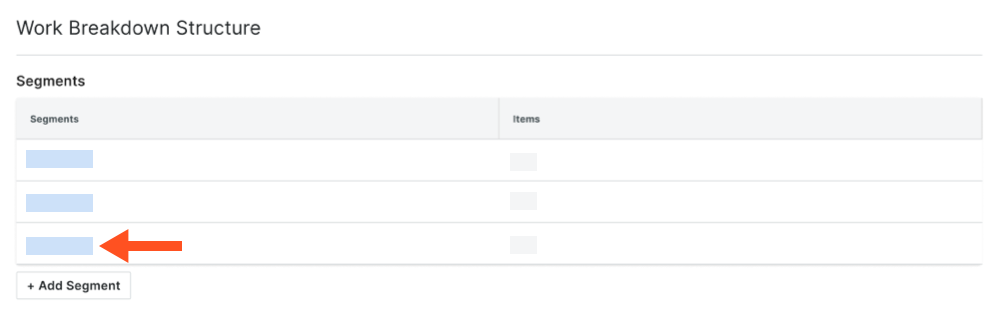
Tips
- Where are my individual cost codes and cost types? The 'Cost Code' and 'Cost Type' segments in Work Breakdown Structure are Procore's default segments. The individual cost codes and cost types listed in each segment list are called segment items. See What are segment and segment items?
- What are sub jobs? The 'Sub Job' segment is an optional segment that you can enable. See Enable Sub Jobs for WBS. Once enabled, you can add sub jobs to your projects. See Add Sub Jobs to a Project.
- What are custom segments? Your company can also create custom segments. For example, you could create a 'Phase' segment and then add segment items named 'Phase I', 'Phase II', and 'Phase III.' See Add Custom Segments.
- What is the difference between a flat segment and a tiered segment? To learn the difference, see What is the difference between a flat and tiered segment in Procore's WBS?
- In the 'Segments' table, do the following:
- Click the Add Items button.
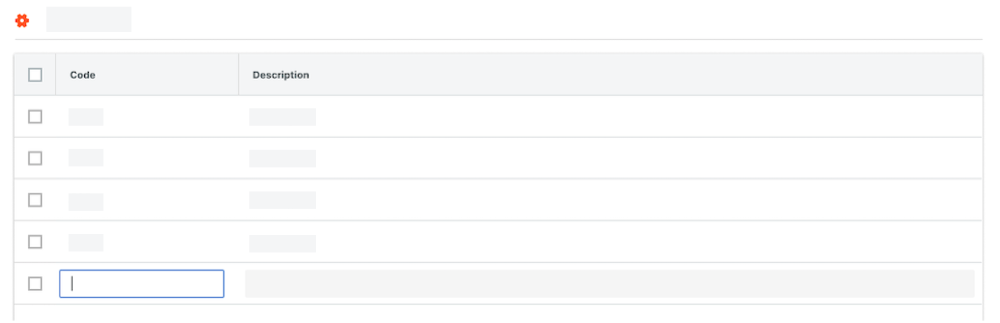
- Code. Enter a unique alphanumeric code for the segment item. Then press the TAB key to move system focus to the 'Description' field. For example, enter: P1, P2, or P3
Notes
- You can set character limits on the 'Code' field when adding or editing a segment. See Add a Company Level Custom Segment or Edit a Company Level Custom Segment.
- To save a new segment item, you must enter both a 'Code' and 'Description'. if you do not enter data in these fields, a RED banner appears to alert you that the fields cannot be empty.

- Description. Enter a description of the segment item. Then press the TAB key to save the new segment item to the list. A GREEN 'Success' banner appears to confirm that the new segment item was saved. For example, enter: Phase I, Phase II, or Phase III
Important
In order to navigate off the page, you must enter both a 'Code' and 'Description'. If you do NOT have an entry in both fields and try to move your cursor's focus to a new page, a popup message reminds you that any changes you've made will NOT be saved.
- To finish your data entry on the line item, click Cancel.
- To proceed without saving the line item, click Leave.
- Code. Enter a unique alphanumeric code for the segment item. Then press the TAB key to move system focus to the 'Description' field. For example, enter: P1, P2, or P3
- Click the Add Items button.
- Repeat the steps above for every segment item that you want to add.
See Also
セグメント項目の編集
Objective
To add a segment items to a segment in your Company level Work Breakdown Structure (WBS).
Background
A segment is a discrete category that an organization uses to break down its work into manageable components. A segment item is one of many distinct items in a segment. After creating a segment, you can add an unlimited number of segment items to it. You can also use the steps below to edit your custom segment items.
Things to Consider
- Required User Permissions:
- 'Admin' level permissions on the Company level Admin tool.
- Additional Information:
- Any edits you make at the Company level are automatically reflected on all of your company's existing Procore projects.
- Limitations:
- You cannot edit the 'Code' field on a custom segment when it is being used on a project's budget code.
- In a flat segment, duplicate entries in the 'Code' field are NOT permitted.
- In a tiered segment, duplicate entries in the 'Code' field are NOT permitted when the segment items are children of the same parent segment.
- There are no character limits or other limitations on entries in the 'Description' field.
- Custom Segments are NOT supported with the ERP Integrations tool.
Prerequisites
Steps
- Navigate to the Company level Admin tool.
- Under 'Company Settings', click the Work Breakdown Structure link.
- In the 'Segments' table, click the segment that you want to work with.
Note
For example, let's assume you created a custom segment named 'Phase' with segment items named 'Phase I', 'Phase II', and 'Phase III' You want to rename the segment 'Stage' and its segment items 'Stage 1, Stage 2, and Stage 3.' - In the 'Segment Item' table, do the following:
- Code. Type over the existing entry with a unique alphanumeric code for the segment item. Then press the TAB key to move system focus to the 'Description' field. For example, enter: Stage
Important
If the custom segment item is being used on a project's budget code, you will NOT be able to change its 'Code' value. - Description. Type of the existing entry with an updated description of the segment item. Then press the TAB key to save the new segment item to the list. A GREEN 'Success' banner appears to confirm that the update was saved. For example, enter: Stage 1, Stage 2, or Stage 3
- Code. Type over the existing entry with a unique alphanumeric code for the segment item. Then press the TAB key to move system focus to the 'Description' field. For example, enter: Stage
- Repeat the steps above to change other segment items as needed.
Next Steps
セグメント項目の非アクティブ化
Objective
To deactivate a segment item from your company's Work Breakdown Structure (WBS).
Background
A segment is a discrete category that an organization uses to break down its work into manageable components. A segment item is one of many distinct items in a segment. In Procore's Financial Management tools, segments are the building blocks that define the pattern of your company's budget code structure.
When you create a new segment item, it is active in your company account by default. You can use the steps below to deactivate it. When a segment is in a deactivated state, its is grayed out to indicate it is unavailable in the 'Segments' table.
Things to Consider
- Required User Permissions:
- 'Admin' level permissions on the Company level Admin tool.
- Additional Information:
- Segments can only be deactivated at the Company level. This function is NOT currently available on projects.
- Before you deactivate a segment, be aware of the following:
- If you deactivate a segment item that is used in a budget code on an existing project, it will continue to be available on that project. If you do NOT want the segment item to be used in a budget code on the existing project in the future, it is strongly recommended that you communicate this directive to your project team.
- If you deactivate a segment item that is not used in a budget code on an existing project, it will not be available for use on that project.
- If you deactivate a segment item and then create a new project, it will NOT be available for use on the new project.
- If you want to permanently remove a segment item to prevent it from being available on all new projects, see Delete Segment Items.
- Limitations:
Prerequisites
Steps
Deactivate Flat Segment Items
- Navigate to the Company level Admin tool.
- Under 'Company Settings', click the Work Breakdown Structure link.
- In the 'Segments' table, locate the desired segment and then click its link.
- In the 'Segment' table, locate the segment item to deactivate.
Important
Before you deactivate a segment, be aware of the following:
- If you deactivate a segment item that is used in a budget code on an existing project, it will continue to be available on that project. If you do NOT want the segment item to be used in a budget code on the existing project in the future, it is strongly recommended that you communicate this directive to your project team.
- If you deactivate a segment item that is not used in a budget code on an existing project, it will be deactivated on that project.
- If you deactivate a segment item and then create a new project, it will NOT be available for use on the new project.
- Click the vertical ellipsis and choose Deactivate from the Overflow menu on the line item.
Procore deactivates the segment item.
Example
In this example, we will deactivate a segment item named 'Phase 1' in a custom segment named 'Phase'.

Tip
How do I know when a segment item is inactive? When segment items are in the deactivated state, they are grayed out to indicate they are unavailable.
Deactivate Tiered Segment Items
- Navigate to the Company level Admin tool.
- Under 'Company Settings', click the Work Breakdown Structure link.
- In the 'Segments' table, locate the segment(s) to deactivate.
Important
Before you deactivate a segment, be aware of the following:
- If you deactivate a segment item that is used in a budget code on an existing project, it will continue to be available on that project.
- If you do NOT want the segment item to be used in a budget code on the existing project in the future, it is strongly recommended that you communicate this directive to your project team.
- If you deactivate a segment item that is not used in a budget code on an existing project, it will be deactivated on that project.
- If you deactivate a segment item and then create a new project, it will NOT be available for use on the new project.
- Choose from these options:
Deactivate a Parent Segment and its Children
To deactivate a parent segment and all of its items, highlight the tiered segment item in the list. Then, click the vertical ellipsis and choose Deactivate from the Overflow menu.
Example
In this example, we have highlighted the top-level segment named 'Tiered Codes' and want to deactivate the code named 'C1 - Code 1' and all of its children.
Deactivate a Single Segment Item
To deactivate a single segment item, click the vertical ellipsis and choose Deactivate from the Overflow menu at the top of the 'Segments' table.
Example
In this example, we have highlighted a Tier 2 segment named 'C1-Code 1' and want to deactivate the code named 'A - Code 1A'. This code has no children.

Deactivate Segment Items in Bulk
To deactivate segment items in bulk, place a checkmark next to the boxes that correspond to the segment items to deactivate. Then click the 'Deactivate Selected Items' icon at the top of the 'Segment Items' table.
Example
In this example, we have highlighted a Tier 2 segment named 'C1-Code 1' and want to deactivate two (2) codes named 'B - Code 1B' and 'C - Code 1C'. Neither one of these codes have children.

Tip
How do you know if a segment item has been deactivated? When deactivated, segment items are grayed out and unavailable, as shown below.

See Also
セグメント項目の再アクティブ化
Objective
To reactivate a segment item in your Procore company account.
Background
A segment is a discrete category that an organization uses to break down its work into manageable components. A segment item is one of many distinct items in a segment. In Procore's Financial Management tools, segments are the building blocks that define the pattern of your company's budget code structure.
When you create a new segment item, it is active in your company account by default. You have the option to deactivate it at the company level. If you change your mind or if you want to use the segment item later, you can also use the steps below to reactivate it.
Things to Consider
- Required User Permissions:
- 'Admin' level permissions on the Company level Admin tool.
- Additional Information:
- If you reactivate a segment item, it will immediately be available in all new projects and on any existing projects where it was previously deactivated.
- Limitations:
- Custom Segments are NOT supported with the ERP Integrations tool.
Prerequisites
Steps
Reactivate Flat Segment Items
- Navigate to the Company level Admin tool.
- Under 'Company Settings', click the Work Breakdown Structure link.
- In the 'Segments' table, locate the segment to reactivate and then click its link.
Tip
How do I know when a segment item is inactive? When segment items are in the deactivated state, they are grayed out to indicate they are unavailable. - Click the vertical ellipsis and choose Reactivate from the Overflow menu.

Procore reactivates the segment item. The line item is grayed out, to indicate it is no longer available in the list of segment items in the 'Segment' table.
Reactivate Tiered Segment Items
- Navigate to the Company level Admin tool.
- Under 'Company Settings', click the Work Breakdown Structure link.
- In the 'Segments' table, locate segment(s) to reactivate.
- Place a checkmark in the boxes that correspond to the segment(s).
Tip
How do I know when a segment item is inactive? When segment items are in the deactivated state, they are grayed out to indicate they are unavailable. - Click the vertical ellipsis and choose Reactivate from the Overflow menu at the top of the 'Segments' table.
Procore reactivates the segment item.
See Also
会社費用コードを追加する
会社の費用コード セグメント設定を表示する
Objective
To view 'Cost Code' segment settings for your Company level Work Breakdown Structure (WBS).
Background
Use the steps below whenever you want to view the settings on the 'Cost Code' segment in your company's WBS. Remember that 'Cost Code' is a default segment and its settings cannot be edited at the company or project level. You can, however, add, edit, and delete segment items at both the company and project level.
Things to Consider
- Required User Permissions:
- 'Admin' level permissions on the Company level Admin tool.
- Additional Information:
- 'Cost Code' segment settings cannot be edited at the company or project level.
- However, you can add, edit, and delete segment items at both the company and project level.
- Limitations:
Prerequisites
Steps
- Navigate to the Company level Admin tool.
- Under 'Company Settings', click the Work Breakdown Structure link.
- In the 'Segments' table, click the 'Cost Codes' segment.
- Above the 'Cost Codes' table, click Configure Settings icon.
- In the 'Segment Settings' dialog box, you can view its settings. All settings are grayed out to indicate they cannot be edited.
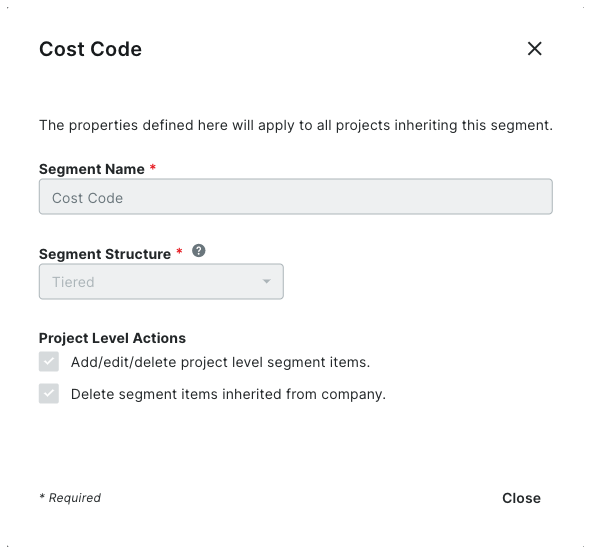
Note
The 'Cost Code' segment is a default segment. You cannot edit any of its settings - Click Close.
Next Steps
See Also
会社の費用タイプを追加する
Objective
To add cost types as segment items to the 'Cost Type' segment in your Company level Work Breakdown Structure (WBS).
Background
The 'Cost Type' segment is one of the default segments in Procore's Work Breakdown Structure. It is a flat segment that is typically is used to perform job costing. In WBS, a segment is a discrete category that an organization uses to break down its work into manageable components. A segment item is one of many distinct items in a segment. After creating a segment, you can add an unlimited number of segment items to it. To learn more, see What are segments and segment items?
Example
Procore's 'Cost Type' segment includes the following segment items. See What are Procore's default cost types? Other segment items to add to your 'Cost Type' segment might include Direct Labor (DL), Direct Materials (DM), and Overhead (OH):
Things to Consider
- Required User Permissions:
- 'Admin' level permissions on the Company level Admin tool.
- Additional Information:
- 'Code' and 'Description' are required fields and cannot be empty.
- Duplicate entries in the 'Code' field are NOT permitted. Entries in the 'Code' field for each segment item must be unique.
- There are no character limits on entries in the 'Description' field.
- There is no limit on the number of segment items you can add.
- Your Company level 'Cost Type' segment items cannot be edited or deleted at the project level.
- Limitations:
Prerequisites
Read the following:
Steps
- Navigate to the Company level Admin tool.
- Under 'Company Settings', click the Work Breakdown Structure link.
- In the 'Segments' table, click the 'Cost Types' segment to open it.
- Do the following:
- If you are setting up segment items for the first time or if you want to add more cost types, click the Add Items button.
- Code. Enter a unique alphanumeric code for the segment item. This is a required field. Duplicate entries are NOT permitted. In this example, we will enter: L
- Description. Enter a description of the segment item. This is a required field. In this example, we will enter: Labor
Note
The 'Code' and 'Description' fields are required. Duplicate entries are NOT permitted in the 'Code' field. If you attempt to leave a field blank or add a duplicate, Procore displays a RED banner to notify you of the issue.

- Repeat the steps above for every cost type that you want to add.
会社の費用タイプ セグメント設定を表示する
Objective
To view 'Cost Type' segment settings for your Company level Work Breakdown Structure (WBS).
Background
Use the steps below whenever you want to view the settings on the 'Cost Type' segment in your company's WBS.
Things to Consider
- Required User Permissions:
- 'Admin' level permissions on the Company level Admin tool.
- Limitations:
Prerequisites
Steps
- Navigate to the Company level Admin tool.
- Under 'Company Settings', click the Work Breakdown Structure link.
- In the 'Segments' table, click the 'Cost Types' segment.
- Above the 'Cost Types' table, click Configure Settings icon.
- In the 'Segment Settings' dialog box under 'Project Level Actions,' you have these options:
Note
The 'Cost Type' segment is a default segment. You cannot edit the 'Segment Name' or the 'Segment Structure' settings.- Add/Edit/Delete Project Level Segment Items. This checkbox is grayed out and unavailable by default.
- Delete Segment Items Inherited by Default. This checkbox is grayed out and unavailable by default.
- Available for Use on New Projects. Place a checkmark in this box to make the segment and its items available for use on new Procore projects. This is Procore's default setting. Remove the checkmark if you do NOT want the segment or its items to be available on projects.
- Click Close.
See Also
プロジェクトのサブプロジェクトを有効にする
Objective
To enable the company level setting that allows your team to use the project level Sub Jobs feature with Work Breakdown Structure (WBS).
Background
Things to Consider
- Required User Permissions:
- 'Admin' level permissions on the Company level Admin tool.
- Additional Information:
- To learn more about Sub Jobs, see: What's the difference between a job, a parent job, and a sub job?
- Limitations:
Steps
- Navigate to the Company level Admin tool.
- Under 'Company Settings', click Work Breakdown Structure.
- In the 'Segments' table, click the Configure Segments icon.
- In the 'Enable Sub Jobs' window, mark the Enable Sub Jobs on Projects check box.

- Click Save.
Procore adds a 'Sub Job' line item to the 'Segments' table. The 'Sub Job' line item is grayed out and unavailable, because sub-jobs are managed at the project level.
Next Step
会社の予算コード構成の設定
Objective
To configure your company's default and custom segments to define the budget code structure of your company's Work Breakdown Structure (WBS).
Background
When your company's Procore Administrator adds custom segment, Procore automatically adds them to the end of the 'Budget Code Structure' section in the order created. Your administrator can also arrange these segments to appear in any order. The arrangement defines your company's budget code structure on all the Procore projects in your company's account.
Important
When arranging and rearranging segments, its important to keep these points in mind:
- Although your Procore Administrator can change your company level budget code structure at any time, rearranging the segment order only affects the segment order of new Procore projects. Existing Procore projects retain the budget code structure that was defined in the Company Admin tool at the time the project was created.
- Before moving segments on your company level budget code structure, its important to understand the impact of this action on your Procore projects. For details, see What happens to projects when I change the segment order of my company's budget code structure in WBS?
Example
You can arrange the segments in your company's budget code structure in any order you want. The segment order goes into effect on your new project(s).
Things to Consider
- Required User Permissions:
- 'Admin' level permissions on the Company Admin tool.
- Additional Information:
- Sub Jobs are NOT supported in the Company Admin tool. Instead, they must be enabled and managed in the Project level Admin tool. See Enable Sub Jobs on Projects for WBS and Add 'Sub Job' Segment Items to a Procore Project.
- Limitations:
Prerequisites
Complete these steps:
Steps
- Navigate to the Company level Admin tool.
- Under 'Company Settings', click the Work Breakdown Structure link.
- In the 'Budget Code Structure' section, click the Edit button.
- In the 'Segment Order' table, click and hold the double grip and then use a drag-and-drop operation to place each segment in the desired position.
The 'Order' area reflects the segment order your define for your company's budget code structure.

- Click Save.
プロジェクトレベルの予算コード構成の編集を有効にする
Objective
To enable a company level setting that allows project users to edit the budget code structure on a project.
Background
Although it is not common for project's to use different budget code structure from project-to-project, a Procore Administrator can configure a setting in the Company Admin tool that allows users with 'Admin' level permissions on a project to change the pattern of the budget code structure for that project.
Important
If you choose to enable this setting, ensure that your project users are aware of the following limitations:
- Adding a new company-level segment to the company budget code structure has NO affect on a project's budget code structure. If you want to add the new company-level segment to a project, it must be added manually to the project.
- You can remove a company-level segment from a project's budget code structure. However, for best results, it is recommended that you remove the segment at the beginning of the project and avoid adding that segment back mid-project.
- You can reorder the segments on the project level budget code structure at any time.
Things to Consider
- Required User Permissions:
- 'Admin' level permissions on the Company Admin tool.
- Limitations:
Steps
- Navigate to the company's Admin tool.
- Under 'Company Settings', click Work Breakdown Structure.
- Scroll to the 'Budget Code Structure' table.
- Click the Configure Budget Code Structure icon.

- In the 'Edit Budget Code Structure at Project Level' window, mark the Enable Project Level Budget Code Structure Edits check box.

- Click Save.