下請契約を作成する (従来)
レガシー コンテンツ
このチュートリアルでは、下請契約を作成するための Procore の従来のエクスペリエンスについて詳しく説明します。 このページの情報は、再設計された委託契約・発注ベータ版エクスペリエンスが一般公開されると、更新されたコンテンツに置き換えられます。 このリリースとそのタイムラインについては、「プロジェクト会計: 委託契約・発注の最新化されたエクスペリエンス」を参照してください。
大事な!委託契約・発注管理のベータ版エクスペリエンスを使用している場合は、以下の情報の代わりに「下請契約の作成」チュートリアルを参照してください。
目的
プロジェクトの委託契約・発注管理ツールを使用して Procore で 下請契約 を作成すること。
背景
下請契約は、プロジェクトの施工前フェーズと施工フェーズの両方で落札でき、通常は プロジェクト管理によって Procore で作成および追跡されます。 元請契約が成立した後、プロジェクトマネージャーは特定の専門分野の発注書と下請契約を作成して、プロジェクトの資材と下請業者サービスを確保します。
考慮すべきこと
- 必要なユーザー権限:
- 下請契約を作成し、[価値表 (SOV)] タブでデータを表示/入力するには:
- プロジェクトの委託契約・発注管理ツールに対する「管理者」レベルの権限。
又は - プロジェクトの委託契約・発注管理ツールの「標準」レベルの権限と「ユーザーに予定価格表項目の表示を許可する」設定を有効にし、「個人を選択」ドロップダウンリストで自分の名前を選択する必要があります
- プロジェクトの委託契約・発注管理ツールに対する「管理者」レベルの権限。
- 下請契約のみを作成するには、プロジェクトの委託契約・発注管理ツールの「読み取り専用」または「標準」レベルの権限を持ち、権限テンプレートで 「作業指示書契約を作成」のアクセス権限 が有効になっていること。
- 下請契約を作成し、[価値表 (SOV)] タブでデータを表示/入力するには:
- 追加情報:
- 下請契約を作成する別の方法は、落札して下請契約に変換することです。「落札価格を落札して下請契約に変換する」を参照してください。
- 下請契約の会計処理法を設定するには、「契約または資金調達の会計処理法を設定するにはどうすればよいですか?」を参照してください。
- 下請契約を作成した後、変更指示を作成するための次のオプションがあります。
- 下請契約が第 1 階層の変更指示用に構成されている場合。 「委託契約・発注の変更指示を作成する」に進みます。
- 下請契約が 2 階層変更指示用に構成されている場合。 下請契約が「承認済み」ステータスであることを確認し、「 変更イベントから委託契約・発注の変更指示案を作成する」に進みます。
- 下請契約が 3 階層変更指示用に構成されている場合。 下請契約が「承認済み」ステータスであることを確認し、「 変更イベントから委託契約・発注の変更指示案を作成する」に進みます。
-
For companies using the
 ERP Integrations tool: Prerequisites, requirements, limitations, and considerations might apply depending on the ERP system your Procore account is integrated with. Visit Things to Know about your ERP Integration for details.
前提条件
- 詳細設定を構成する: 委託契約・発注
- Procore + DocuSign® 統合を使用して契約書の署名を要求するには、「Procore プロジェクトで DocuSign® 統合を有効または無効にする」を参照してください。
ステップ
ステップ1: 下請契約を作成する
- プロジェクトの委託 契約・発注 管理ツールに移動します。
- [+ 作成 ] をクリックし、ドロップダウン メニューから [下請契約 ] を選択します。

- 「一般情報」の「一般」タブで、以下を行います。
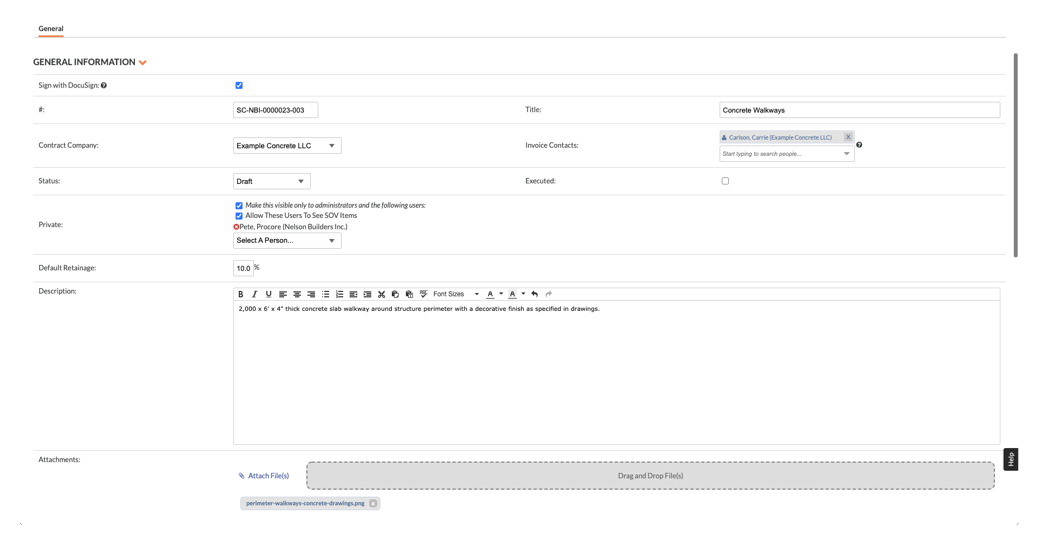
- DocuSign® で署名する
Procore + DocuSign® 統合を有効にしている場合 (「Procore プロジェクトで DocuSign® 統合を有効または無効にする」を参照)、このボックスには既定でチェックマークが表示されます。 DocuSign® で署名を収集したくない場合は、マークを削除してください。 - 数#
既定の番号をそのまま使用するか、新しい番号を入力するか、カスタム番号付けスキームを作成します。For companies using the
ERP Integrations tool: - In order to send the commitment to the ERP Integrations tool to be accepted for export by an accounting approver:
- Your integrated ERP system may impose a maximum character limit.
- Prerequisites, limitations, and considerations might apply depending on the ERP system your Procore account is integrated with. Visit Things to Know about your ERP Integration for details.
ヒント
番号はどのように割り当てられますか? Procore が番号を割り当てる方法とカスタム番号付けオプションを理解するには、「Procore で財務オブジェクトの番号付けシステムをカスタマイズできますか?」を参照してください。 - In order to send the commitment to the ERP Integrations tool to be accepted for export by an accounting approver:
- タイトル
下請契約の説明的なタイトルを入力します。注
- 会社が ERP との統合ツールを有効にしている場合、一部の 統合 ERP システム では、Procore からエクスポートされたデータをシステムにインポートするときに「タイトル」フィールドに文字制限が課されることに注意してください。
- 文字数制限の詳細については、「委託契約・発注の「タイトル」の最大文字数は何文字ですか?」を参照してください。
- 契約事業者
下請契約の作業を完了する責任を負う会社を選択します (例: American Construction Co.)。
メモ:- このリストに選択肢として表示するには、会社をプロジェクト ディレクトリに追加します。 詳細については、「プロジェクト ディレクトリに会社を追加する」または「プロジェクトレベルのディレクトリ ツールにユーザーと建材業者をインポートする (Procore Imports)」を参照してください。
- 請求書送付先に名前を付ける前に、契約会社を選択する必要があります。
- 請求書送付先
請求書送付先として指定する「契約事業者」の従業員を1名以上選択します。下請契約を保存すると、ここで追加されたユーザーは「非公開」リストに追加されます。請求書送付先を選択する前に、「契約事業者」を選択する必要があります。 - 地位
下請契約にステータスを割り当てます。 利用可能なステータスと、どの委託契約・発注ステータスがプロジェクトの予算内の契約金額を反映しているかについては、「 Procore の既定の委託契約・発注ステータスは何ですか?」を参照してください。 - 実行済み。このチェックボックスをオンにすると、下請契約が完全に署名され、実行されたことを示します。
注
- 多くの Procore ユーザーは、委託契約・発注を「承認済み」または「完了」ステータスにするときに、[実行済み] ボックスにチェックマークを付けることを選択します。
- プロジェクトチームが [実行済み] ボックスにチェックマークを付ける時刻は、常にプロジェクト固有のビジネス プロセスに合わせている必要があります
- プライベート
チェックボックスをオンにして、「人を選択」リストからプロジェクトユーザーまたは協力者を選択します。 非公開オプションの詳細については、「 委託契約・発注の非公開設定を変更する」を参照してください。- これを管理者と次のユーザーのみに表示します
このチェックボックスをオンにすると、発注書の表示を、プロジェクトの委託契約・発注管理ツールで「管理者」を持つユーザーと、「個人を選択」ドロップダウンリストで指定されたユーザーに制限します。 - これらのユーザーに予定価格表項目の表示を許可する
このボックスのこのチェックボックスをオンにすると、発注書の価値表 (SOV) 項目の表示が、プロジェクトの委託契約・発注管理ツールで「管理者」を持つユーザーと、[個人を選択する] ドロップダウンリストで指定されたユーザーに制限されます。
- これを管理者と次のユーザーのみに表示します
- 既定の保留金
最初の下請業者請求書で源泉徴収する 保留金の割合を指定します。 たとえば、このフィールドに 5% または 10% を入力するのが一般的です。注
- 下請契約に設定された「既定の保留金」の金額は、最初の下請業者請求書の金額にのみ影響します。
- 最初の下請業者請求書の作成後にこの値を編集しても、後続の請求書の保留金金額には影響しません。
- 後続の請求書で保留金金額を設定または解除するには、「委託契約・ 発注で保留金を有効にする」の手順を完了します。 次に、次のいずれかの Procore ツールを使用して、その請求書の保留金を設定または解除します。
- コミットメント。下請業者の請求書に保留金を設定または解除します。
- 請求書管理。下請業者の請求書に保留金を設定または解除します。
- 下請業者請求書の源泉徴収額を自動的に調整する 保持ルールを設定する場合は、「委託契約・発注の請求書でスライディング スケール保持ルールを有効にする」を参照してください。
- 形容
必要に応じて、追加情報を入力します。 - 添付書類。価格見積書、領収書、署名済みの発注書などの関連資料を添付します。 プロジェクトにアップロードされたファイルを添付したり、ローカル コンピューターからファイルをドラッグ・アンド・ドロップしたりできます。
- DocuSign® で署名する
- [契約日 ] セクションまでスクロールし、次のように入力します。

- 開始日。現場で作業範囲が開始される日付を選択します。
- 完了予定日。作業範囲が終了する予定日を選択します。
- 署名された契約書の受領日。下請契約が正式に署名された日付を選択します。
- 実際の完了日。作業範囲が完了したとみなされる日付を選択します。
- [追加情報 ] セクションまでスクロールし、次のように入力します。

- インクルージョン。関連する契約文書に明確に記載されていない可能性のある内容を開示します。
- 除外。関連する契約文書に明確に記載されていない可能性のある除外事項を開示します。
- 以下のボタンのうち1つをクリックします:
- 創造する。このボタンをクリックすると、新しい下請契約が保存され、表示モードの [全般] タブに戻ります。
- [SOV を作成] して入力します。 このボタンをクリックすると、新しい下請契約が保存され、編集モードで「価値表」タブにジャンプします。 予定価格表を入力して続行します。
- DocuSignで完了します®。 このボタンをクリックすると、DocuSign® 統合による下請契約が完了します。 「DocuSign® との委託契約・発注契約の締結」を参照してください。
ステップ2: 価値表 (SOV) を入力する
下請契約の価値表 (SOV) を入力するには、次の 2 つの方法があります。
予定価格表に項目を追加する
注
- 会社が Procore + Procore による統合を使用しており、Procore による統合システムが計算方法を使用するように構成されている場合、Procore による統合では測定単位として一括 (LS) を使用できません。
- 「小計を上書きする」を使用している場合は、小計金額のみを入力する必要があります。Procore による統合により、Procore による統合に「LS」項目が作成されます。
関連項目
 .
.