請求書送付先に代わって下請業者請求書を作成する
重要
著者注: すべての請求書管理と支払いの変更を次の場所に記録します。 https://procoretech.atlassian.net/browse/ILR-466Procore 内部のみ
このページでは、下請業者請求書の最新化されたエクスペリエンスについて詳しく説明します。従来のエクスペリエンスをまだ使用している Procore クライアントの場合は、「請求書送付先に代わって下請業者請求書を作成する (レガシー)」を参照してください。
For Procore Customers in the United States
 When your company applies the 'Owners English' or 'Specialty Contractors English' point-of-view dictionary, you'll see different tool names and term changes in the user interface. Learn how to apply the dictionary options.
- To learn the differences: Show/Hide
目的
請求書送付先 に代わって 請求書管理者 として下 流部門請求書 を作成すること。
背景
会社またはプロジェクトが、外部の協力者に Procore プロジェクトへのアクセス権限を与えて独自の請求書を提出できるようにしたくない場合、チームは Procore の外部の請求書連絡先からデジタルまたは紙の請求書を収集できます。 収集された請求書管理者は、各請求書送付先に代わって Procore で請求書を作成できます。
考慮すべきこと
- 必要なユーザー権限
- 追加情報:
- 請求書管理者は、次のことができます。
- プロジェクトのすべての委託契約・発注管理の請求書を作成します。
- 請求書が [ 草案] または [改訂して再提出] ステータスのときに、価値表の金額を編集します。1つの請求周期中に1つの委託契約・発注に対して複数の請求書が存在する場合、最新の請求書の金額のみを作成できます。
- 請求者に支払スケジュールを提供することが法的に義務付けられているユーザーについては、「支払スケジュールをエクスポートする」を参照してください。
- 早期支払プログラムの請求書の「支払期日」を修正します。
- 請求書管理者は、次のことができます。
前提条件
このチュートリアルの手順を実行するには、請求書の委託契約・発注に次のものが必要です。
- 「契約事業者」として割り当てられた下請会社。 「委託契約・発注を作成」を参照してください。
- 「請求書送付先」として割り当てられた「契約事業者」の従業員。 「請求書送付先を発注書または下請契約に追加する」を参照してください。
- 承認済みまたは完了のステータス。「Procore の既定の委託契約・発注ステータスとは何ですか?」を参照してください。
- 下請金額明細のすべての項目は、承認済みステータスである必要があります。「請求書管理者として下請業者請求書を確認する」を参照してください。 オプションの [下請金額明細] タブを有効にする方法については、「下請金額明細を委託契約・発注に追加する」を参照してください。
さらに、請求書管理者は請求書の請求周期を作成する必要があります。 「請求周期を管理する」を参照してください。
ステップ
新しい請求書ページを開く
Users always create invoices in the project's Commitments tool.
- Navigate to the project's Commitments tool.
- Find the commitment to create an invoice for in the 'Contracts' tab.
- Click the Number link to open it.

- At the top of the commitment, click Create and choose Create Invoice from the menu.
Tip
Is the 'Create Invoice' option inactive? To learn why, hover your mouse cursor over the tooltip. This option only activates when Prerequisites are met.
This opens the 'New Invoice for [Contract Number]' page so you can update the General Information card.
一般情報カードを更新する
In the New Invoice page, update the General Information card. Once updated, continue by updating the Schedule of Values.
Note
The element circled in ORANGE is only available with Procore Pay.

- Learn how to update the General Information card as an invoice administrator: Show/Hide
-
General Information Card
This table details the elements in the 'General Information' card. An invoice administrator can update this information when creating or editing an invoice of behalf of an invoice contact.
Element Field Type Description Learn More Contract Company Read Only Shows the name of the subcontracting company designated as the 'Contract Company' on the commitment. To change the company name that appears: - Assign a different company to the commitment. See Create a Commitment.
OR - Change the company name by editing the company's record in the Project Directory or Company Directory.
Status* Drop-down list Accept the default status (Draft) or select a different status from the drop-down list. - When an invoice is ready for review, remember to change its status to Under Review.
- Once reviewed, remember to change its status to Approved or Revise and Resubmit.
What are the default statuses for Procore invoices? Invoice # Alphanumeric text Procore automatically assigns invoice numbers in sequence using its default numbering system or the custom numbering system defined for your project's invoices. Read Can I customize the numbering system for financial objects in Procore? before changing this number. Billing Period* Drop-down list Accept the billing period that appears by default or select any billing period from the drop-down list.
Note: Invoice contacts and users with 'Standard' level permissions on the Commitments tool can only select a billing period when an invoice is NOT already associated with it.Only invoice administrators can Create Billing Periods. Billing Date* Calendar control Shows the billing date for the selected billing period. You can change the date for this invoice with the calendar control. Only invoice administrators can Create Billing Periods. Period Start* Calendar control Shows the start date for the selected billing period. You can change the date for this invoice with the calendar control. Only invoice administrators can Create Billing Periods. Period End* Calendar control Shows the end date for the selected billing period. You can change the date for this invoice with the calendar control.
Note: To help project managers track how invoices impact a project's budget, the 'Billing Period' date on an invoice aligns with the work performed on a project.Only invoice administrators can Create Billing Periods. Billing Type: Progress Billing
Option button Requires Procore Pay
If the subcontractor is submitting progress billings for an ongoing project, choose this option.When your company has Procore Pay, this setting works with the Invoicing Settings for Progress Conditional and Progress Unconditional lien waivers. See Enable Lien Waivers & Set Default Templates on Projects. Billing Type: Final Billing
Option button Requires Procore Pay
If the subcontractor is submitting a one-time invoice or if this is the final invoice for an ongoing project, choose this option.When your company has Procore Pay, this setting works with the Invoicing Settings for Final Conditional and Final Unconditional lien waivers. See Enable Lien Waivers & Set Default Templates on Projects. Submitted Date Calendar control Select the date the invoice was submitted to your company by the subcontractor. Typically, this is printed on the invoice that you received from the subcontracting company. - Assign a different company to the commitment. See Create a Commitment.
-
Update the Payment Details Card
Procore Internal ONLY
The Payment Details card is only visible for invoice administrators using Procore Pay. The content is marked locale-specific for en-US Support Site visitors only.
The 'Payment Details' card appears next to the 'General Information card for invoice administrators with Procore Pay.
Payment Details Card
To change the payment due date for this invoice, select a new date from the Payment Due Date calendar.
In Beta - Early Pay Programs
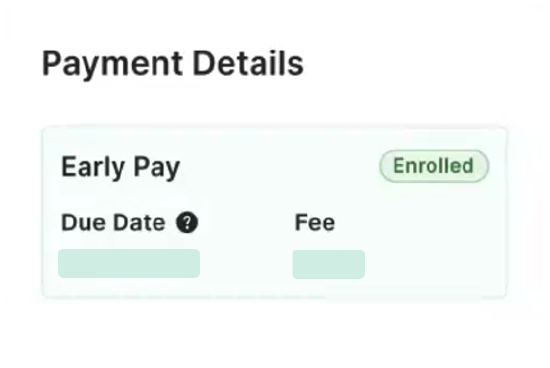
When a payee is enrolled in an Early Pay Program, this card shows the payee's Early Pay Program enrollment Status, Due Date, and Fee. See Review and Manage Early Pay Enrollments as a Payee. The Early Pay Program assigned to the Procore Project automatically determines the Due Date and Fee. See About Early Pay Programs.
[価値表] カードを更新します
添付書類を追加する
- 「添付書類」セクションまでスクロールします。
- 次のオプションから選択します:

- [ ファイルを添付 ] ボタンをクリックします。 これにより、[ ファイルを添付 ] ダイアログ ボックスが開き、コンピューターからファイルをアップロードできます。 完了したら、[ 添付 ] ボタンをクリックします。
又は - ドラッグ・アンド・ドロップ操作を使用して、コンピュータまたはネットワークから「添付書類領域」にファイルを移動します。
- [ ファイルを添付 ] ボタンをクリックします。 これにより、[ ファイルを添付 ] ダイアログ ボックスが開き、コンピューターからファイルをアップロードできます。 完了したら、[ 添付 ] ボタンをクリックします。
請求書を保存する
「新しい請求書」ページの下部にある [ 保存 ] ボタンをクリックします。
注: 下請業者請求書のワークフローが有効になっている場合は、「草案として保存」を選択して作業内容を保存し、同じワークフロー ステップにとどまることもできます。
DocuSign© で請求書を送信する
随意: プロジェクト チームが Procore + DocuSign© 統合を使用して請求書の署名を収集したい場合は、ページ上部の [DocuSign© で送信] ボタンをクリックします。このボタンを使用するには、プロジェクトで DocuSign© との統合が有効になっており (「DocuSign® 統合を有効にするにはどうすればよいですか?」を参照)、請求書のステータスが [承認済み]、[承認済み]、または [承認待ち] である必要があります。DocuSign© との統合と署名用のエンベロープの準備の詳細については、「DocuSign®」を参照してください。

 .
.