

タイムシートを承認する (iOS)
背景
現場作業員は自分のタイムカードを提出でき、職長は現場チームの時間を提出できます。すべてのタイムカードがタイムシートに追加されます。通常、職長または監督はタイムシートの正確性を確認し、ステータスを「確認済み」に変更します。
次に、責任者が給与計算の入力データを「承認」します。このチェックにより、 会社のタイムシート ツールで「完了」とマークされる前に、時間が正確であること、残業が正しく適用されていること、コストが正しいコードに記録されていることが保証されます。
考慮すべきこと
-
「承認済み」タイムカード入力データ:
-
削除できません。
-
会社レベルのタイムシート ツールでのみ「完了」としてマークできます。
-
-
「完了」タイムカード データ:
-
プロジェクトレベルでは編集できません。「 会社レベルのタイムシート ツールで時間データを編集する」を参照してください。
-
-
「個人エントリー」セクションには、会社のタイムカード、日報、またはマイ タイムによって記録された時間が表示されます。これらの入力データは、会社レベルまたはプロジェクトレベルでタイムシート ツールで承認できます。
ヒント
ユーザー権限と多階層承認の詳細については、「時間管理を使用した多階層承認のユーザー権限を構成するにはどうすればよいですか?」を参照してください。前提条件
ステップ
-
タイムシート上の個々のタイムカード データを承認する
-
タイムシートを承認する
タイムシート上の個々のタイムカード データを承認する
-
プロジェクトの [タイムシート ] ツールに移動します。
-
承認したいタイムカード入力データを含む タイムシート をタップします。
-
タイムカード入力データをタップしてレビューします。
-
ステータスをタップし、[承認済み] をタップします。
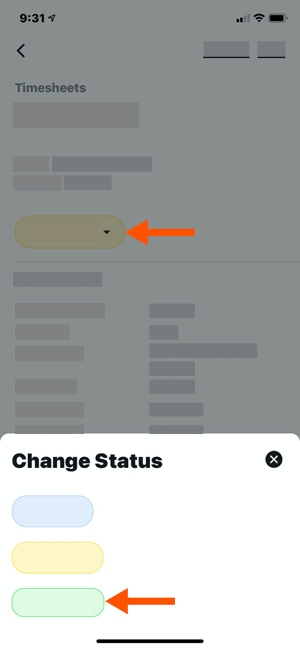
-
タイムシート上のすべてのデータを承認するまで、タイムシート上のタイムカード入力データごとに上記の手順を繰り返します。
-
タイムシートを承認する手順に進みます。
タイムシートを承認する
-
プロジェクトの [タイムシート ] ツールに移動します。
-
承認したい タイムシート をタップします。
-
タイムシート上のすべてのタイムカード データが正確で完了したら、 ステータス をタップして [ 承認済み] をタップします。
-
タイムシートごとに上記の手順を繰り返します。
ヒント
後でタイムシートを編集する必要がある場合は、ステータスを「レビュー済み」または「保留中」に変更する必要があります。携帯機器で従業員の署名を収集している場合は、それらの署名を再度収集する必要があります。