メインコンテンツへスキップ
Procore

タイムシートをレビューする (Android)

目的

To review the timecard entries on a timesheet.

背景

After you create a timesheet, you have the option to collect signatures from your field employees. See Sign a Timesheet (Android) and Sign a Timesheet (iOS). Next, you can begin reviewing your timesheets for accuracy and completeness. 

Example

Because every construction company is different, the team members you choose to carry out your timekeeping process may differ from the roles and considerations in this example:

  • Foremen, Superintendents, and other Supervisors. These are the team members who will create time card entries and timesheets on a project. At a minimum, you should provide these team members with 'Read Only' or 'Standard' level permissions on the Project level Timesheets tool and the 'Review & Edit Timesheets' granular permission on a project permission template. This allows these users to create new timesheets in the 'Pending' status and change the status of a timesheet to 'Reviewed' in the Project level Timesheets tool. They can also change the status from 'Pending' to 'Reviewed' on project timesheets that they have permission to view using the Company level Timesheets tool. 
  • Project Managers and other Administrators or Executives. These are the team members who will approve 'Reviewed' timesheets before handing them off to your accounting/payroll team for processing. At a minimum, you should provide these team members with 'Admin' on the Project level Timesheets tool. However, if they are responsible for monitoring timekeeping on multiple projects, you may wish to also grant them 'Admin' level permissions on the Company level Timesheets tool. 
  • Accounting, Payroll, and other Administrators or Executives. These are the team members who will mark timesheets 'Completed.' This capability is only available in the Company level Timesheets tool, so you should assign these users 'Admin' level permissions on both the Project level Timesheets tool. This allows users to access the Company level Timesheets tool. It also allows users to see project data in the Company level tool.  

考慮すべきこと

 Tip
Need to edit a timecard entry? See Edit a Timesheet.

ステップ

タイムカード入力データをレビューする

  1. Android 携帯機器で、プロジェクトの [タイムシート] ツールに移動します。
  2. レビューするタイムカード入力データに移動します。
  3. タイムカード入力データをタップしてレビューします。
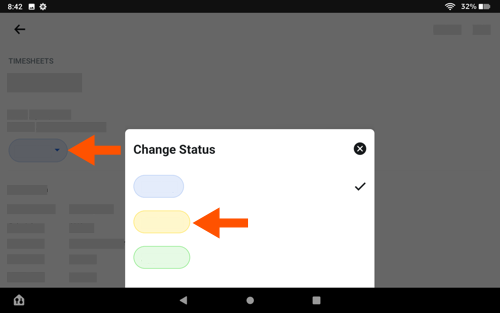
  4. 次のように、タイムカード入力データのステータスを「確認済み」に変更します。
    • タイムカード入力データで、「保留中」ステータス アイコンをタップします。
    • 「ステータスの変更」タブで、「レビュー済み」ステータス アイコンをタップして選択します。

      timecard-entry-pending-to-reviewed.png
       
  5. タイムシート上のすべてのデータを承認するまで、タイムシート上のタイムカード入力データごとに上記の手順を繰り返します。
  6. 以下の「タイムシートを確認する」に進みます。

タイムシートを確認する

  1. Android 携帯機器で、プロジェクトの [タイムシート] ツールに移動します。
  2. タイムシートをタップしてレビューします。
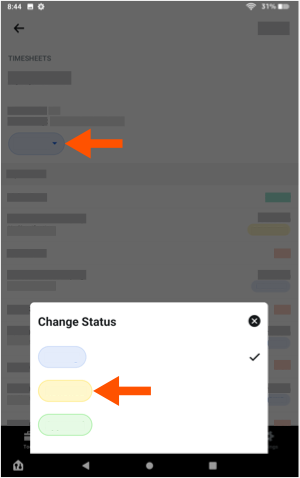
  3. 次のように、タイムシートのステータスを「レビュー済み」に変更します。
    • タイムシートで、「保留中」ステータス アイコンをタップします。
    • 「ステータスの変更」タブで、「レビュー済み」ステータス アイコンをタップして選択します。

      android-timesheet-pending-to-reviewed.png
       
  4. レビューするタイムシートごとに上記手順を繰り返します。


If you would like to learn more about Procore's timesheet management software and how it can help your business, please visit our construction timesheet software product page icon-external-link.png.