

委託契約・発注の「支払い済み」タブに新しい支払いを追加する
重要
著者注:すべての請求書管理と支払いの変更を次の場所に記録します。 https://procoretech.atlassian.net/browse/ILR-469PROCORE サポート: 内部メモ
このページでは、委託契約・発注管理ツールの最新化されたエクスペリエンスについて詳しく説明します。従来のエクスペリエンスのチュートリアルは、次のリンクの委託契約・発注管理ツールで利用できます https://support.procore.com/products...n-a-commitment
For Procore Customers in the United States
 When your company applies the 'Owners English' or 'Specialty Contractors English' point-of-view dictionary, you'll see different tool names and term changes in the user interface. Learn how to apply the dictionary options.
- To learn the differences: Show/Hide
目的
glossary-of-terms#Commitment請求書管理者 として 、委託契約・発注 に対して会社が発行した支払いを手動で記録すること。
背景
委託契約・発注で下流部門協力者に 発行された支払いを手動で記録するには、委託契約・発注の「発行済み支払い」タブを使用します。
- Procore ペイを使用している会社の場合: 表示/非表示
- Procore ペイを使用して下請業者請求書を支払う場合、共同小切手の支払いを正確に追跡および管理するために必要な設定については、「 Procore ペイとの共同小切手について」を参照してください。
考慮すべきこと
ステップ
- プロジェクトの 請求書管理 ツールに移動します。
- [ 下請業者] タブをクリックします。
- 新しい支払レコードの契約または請求書を見つけます。
- 次のオプションから選択して、委託契約・発注を開きます。
- 契約。[契約] リンクをクリックして委託 契約・ 発注を開きます。
- 請求書 #。 [ 請求書 # ] リンクをクリックし、[ 契約 #] ブレッドクラム リンクをクリックします。
- 委託契約・発注で、[ 発行済み支払い] タブをクリックします。
- [ 支払いを追加] をクリックします。

- 「支払の追加」プロンプトで、次のように入力します。
- 請求書。発行済み支払いが添付されている既存の請求書をドロップダウンから選択します。
- 支払い#。発行された支払いに関連する支払い番号を入力します。
- 支払 方法。 ドロップダウンリストから支払い方法を選択します: 小切手、クレジット カード、電子。
- 量。支払い金額を入力します。
- 日付。支払の発行日を入力します
- 請求書 #。発行された支払いに関連する請求書番号を入力します。
- [#] をオンにします。発行された支払いに関連する小切手番号を入力します。
- 筆記。記録のために、発行された支払いに関する追加のメモを入力します。
- 添付 ファイル。関連するファイルまたはドキュメントを添付します。
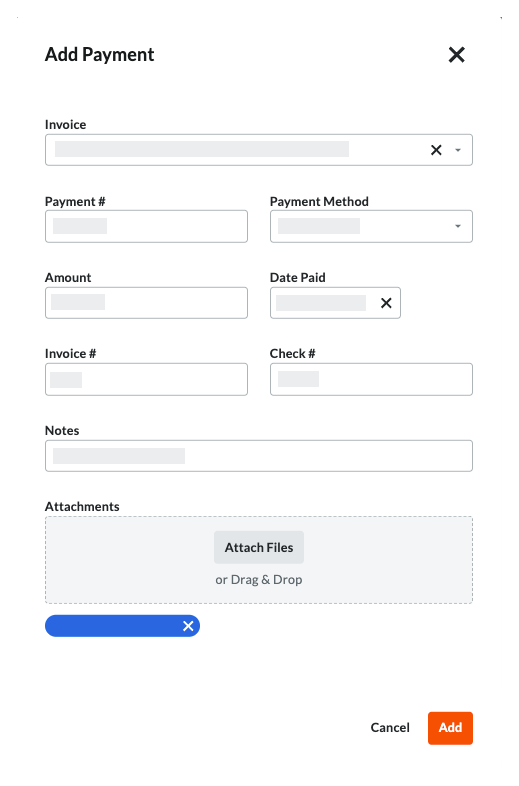
- [追加する] をクリックします。
If you would like to learn more about Procore's invoice management software and how it can help your business, please visit our construction invoice management software product page  .
.
.